Installing IBOplayerPRO on Smart TV
For LG, Samsung, and other Smart TVs.
⚠️ Disclaimer — Please Read
Just a friendly reminder that the Smart TV app is provided by a third-party developer.
The app usually includes a free trial for about a week. After the trial ends, the developer charges a one-time fee to unlock the app for lifetime use.
If you'd prefer to avoid that fee, we offer free apps through the Google Play Store for Android-based devices such as Firestick, Fire TV, Onn, Google TV, and other compatible Android streaming devices.
📋 What you'll need
- Your Smart TV connected to Wi-Fi
- The username, password, and URL from your login email
1
Install the App
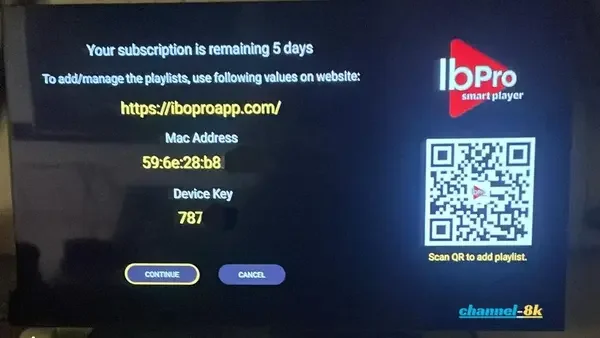
Go to your TV's app store and download IPTVplayerIO or IBOplayerPRO. Once installed, open the app — you'll see a MAC Address, Device Key, and a website link on screen.
2
Add Your Playlist
If you'd like to add the playlist yourself, go to the link shown on your screen, or scan the QR code.
3
Manage Playlists
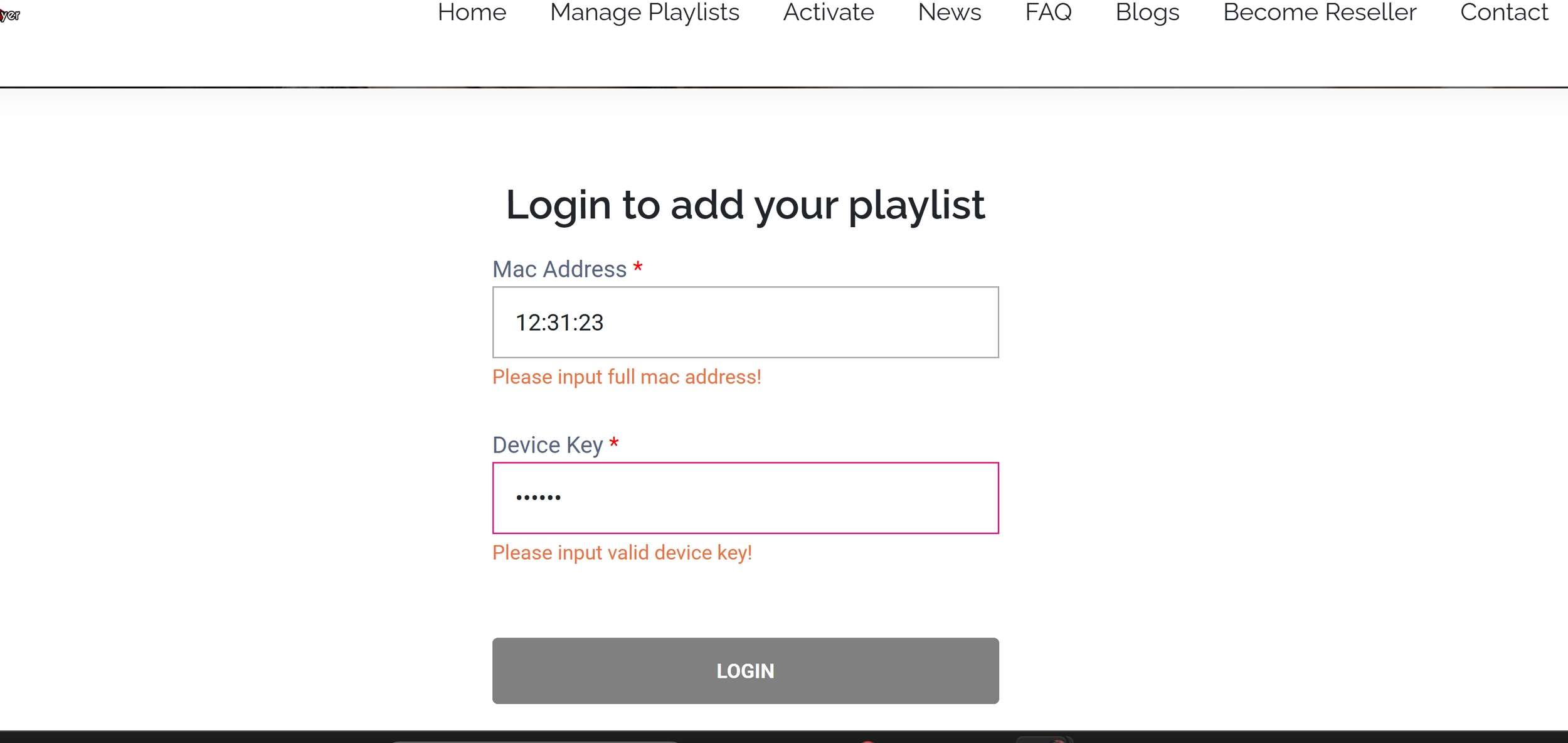
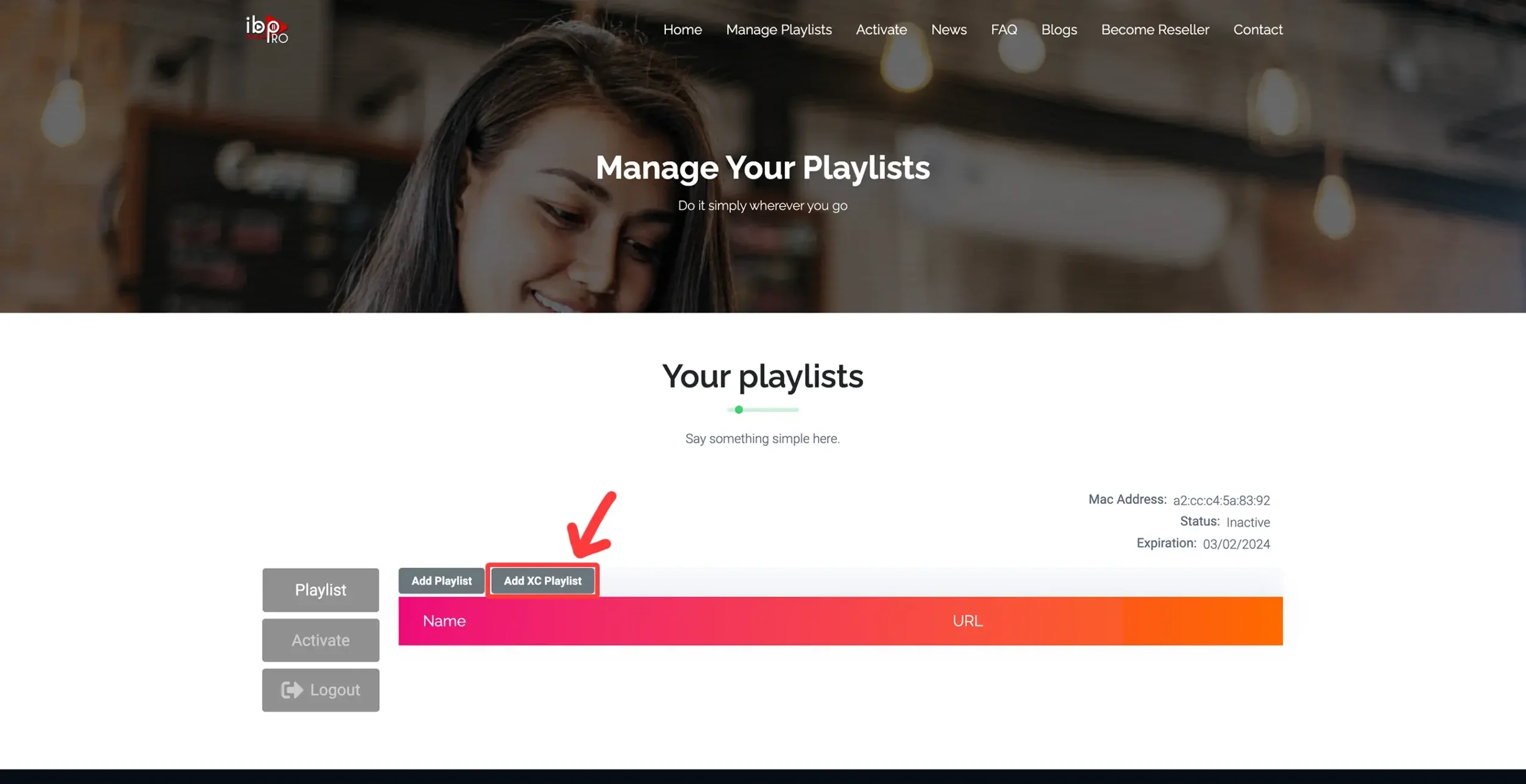
Click Manage Playlists at the top of the page, then log in using your TV screen credentials.
4
Add XC Playlist
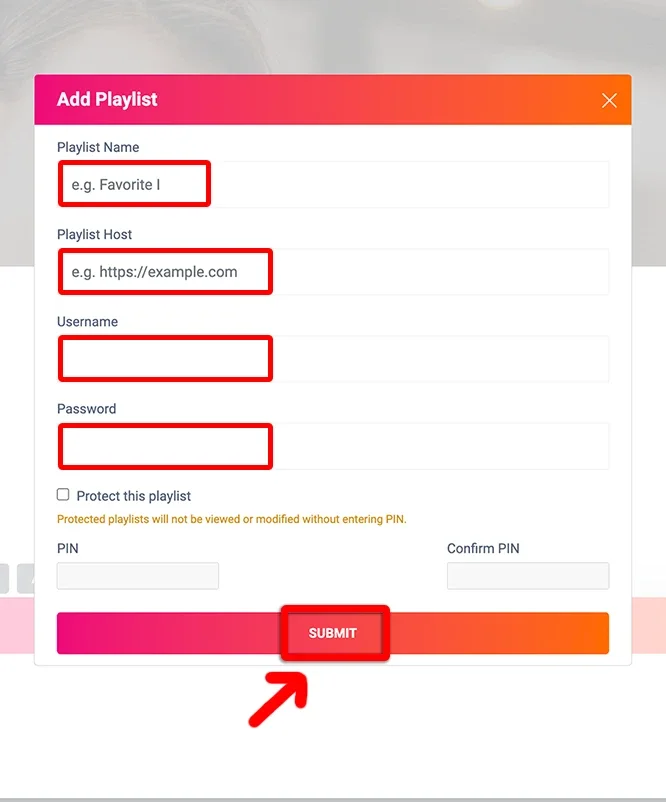
Click Add XC Playlist and fill in the details:
- Playlist Name — anything you'd like
- Host — the URL provided in your login details
5
Finish Up
Once your playlist is added, refresh the app or turn your TV off and back on. Your Live TV, Movies, and Series should now be available!
💡 Having trouble setting this up yourself? Just send us the MAC Address and Device Key for your TV app, and we can set it up for you!
Need help?
We're happy to walk you through it live.
